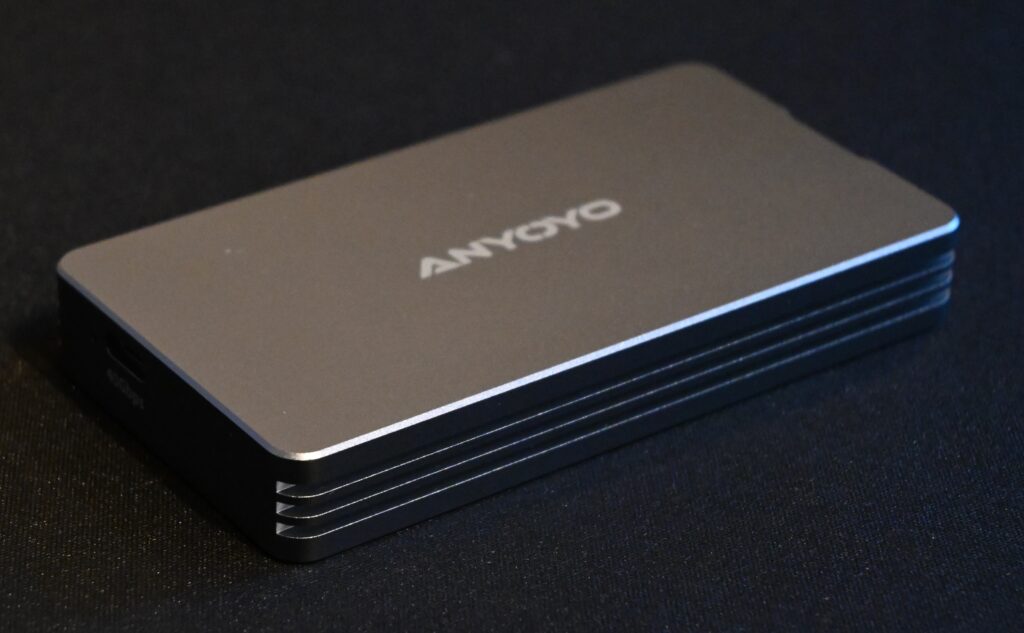
The perennial problem facing both Windows and Mac users with small internal storage setups, especially when the SSD may be soldered to the motherboard or when the owner does not wish to open their laptop, is how to increase storage in a fast and efficient way. For owners of laptops with Thunderbolt 3, 4, or 5, external drive enclosures housing a fast NVMe drive appears to be a sensible option. But do these drives live up to the promise of blazing-fast external storage?
To answer that question, I tried adding storage to my Windows and Mac laptops using a mid-range external storage enclosure with a fast PCIe 4.0 NVMe drive.
Why Choose External Storage Over Internal?
For some laptop owners, the choice is simple: they have no choice! Many MacBook laptops and some Windows ultrabooks have storage soldered to the motherboard, with no internal M.2 slot available. In such cases, users are stuck with the storage they originally ordered.
Even for laptops that can be upgraded, some owners may hesitate to open their device due to warranty concerns or a lack of confidence. While the concept is straightforward, we’ve all faced those dreaded plastic clips that make it feel like we’re destroying our laptops with every snap.
Finally, external storage offers portability. If you have multiple laptops or a laptop and a desktop, an external drive that you can switch between devices is incredibly convenient.
External Drive Enclosure or External Drive?
While external drives are plentiful, most are USB 3.2, and Thunderbolt options are harder to find. Based on my experience, external drives rarely achieve speeds beyond 1000MB/s, which, although decent, is far from the performance of an internal NVMe SSD. While I don’t expect a Thunderbolt external drive enclosure to match internal NVMe speeds, I hoped for a significant boost.
Anyoyo TB3/TB4 Enclosure
I chose a mid-priced external enclosure from Amazon by a brand called Anyoyo. This tool-free aluminium drive enclosure costs approximately £100 (£109 currently on Amazon).
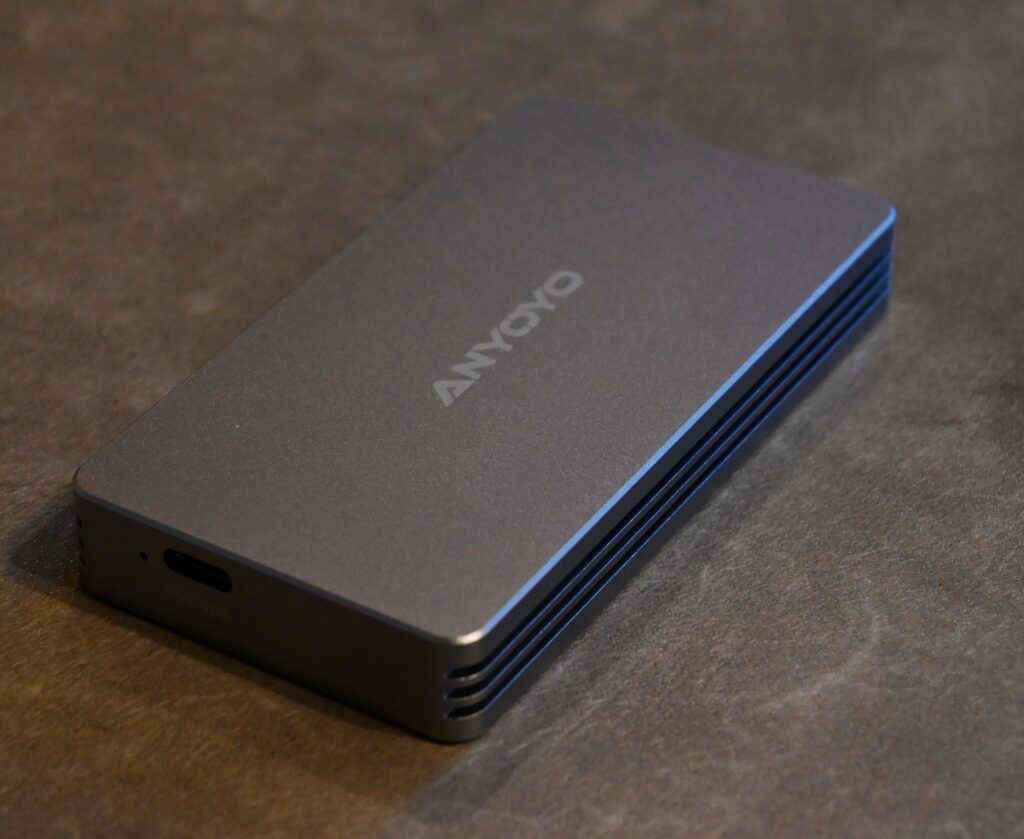
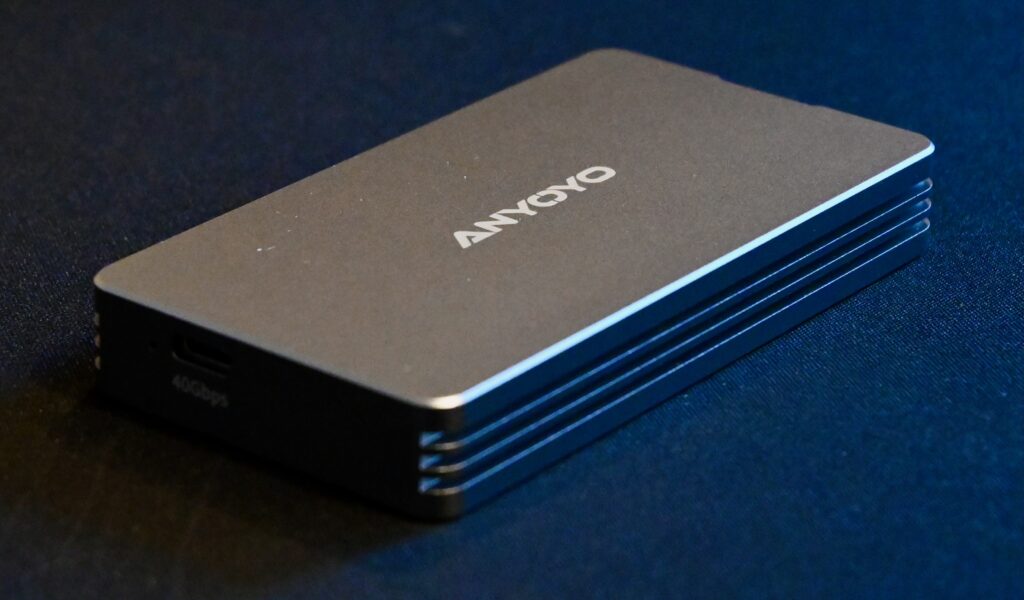
Amazon Link – Anyoyo Enclosure
I paired it with a Samsung 980 PRO 2TB NVMe drive, currently retailing for £135 on Amazon. While this drive might be overkill, I’ve always found Samsung NVMe drives to be reliable. Many unknown brands offer similar speeds, but I personally wouldn’t trust my data to them. The Samsung 980 PRO is rated for up to 7000MB/s, though I’d be impressed if I achieve even a quarter of that with this external setup.
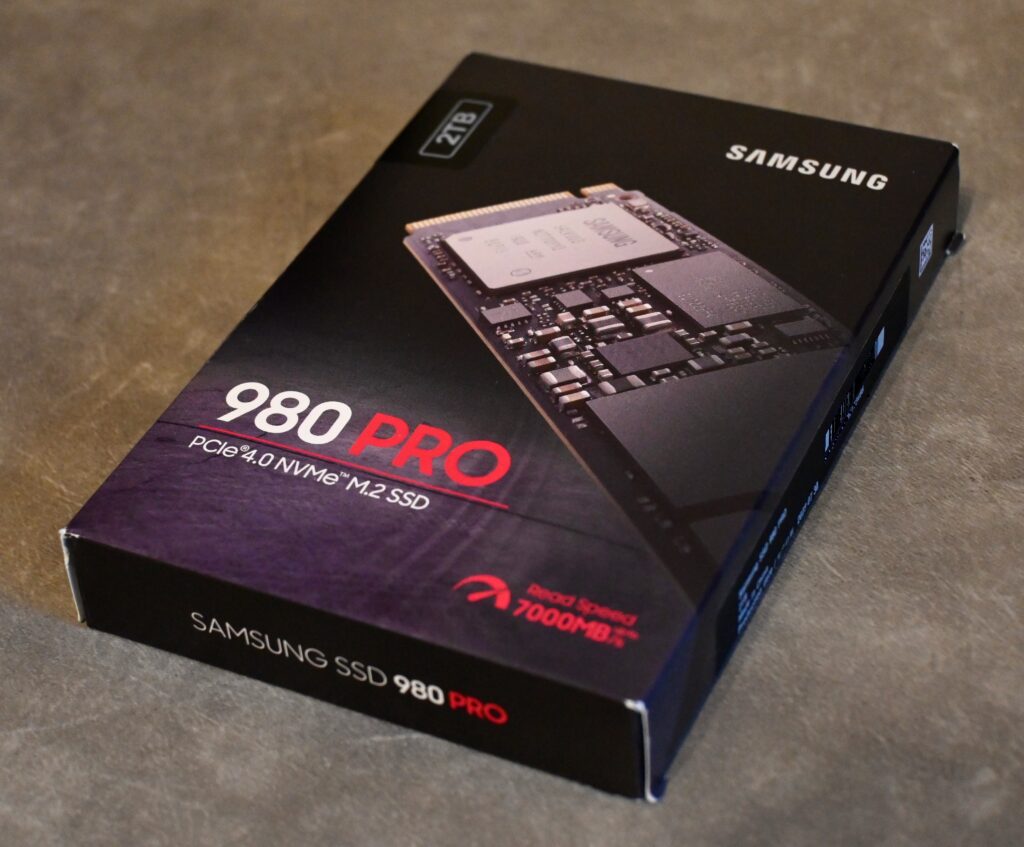
Installing the NVMe drive
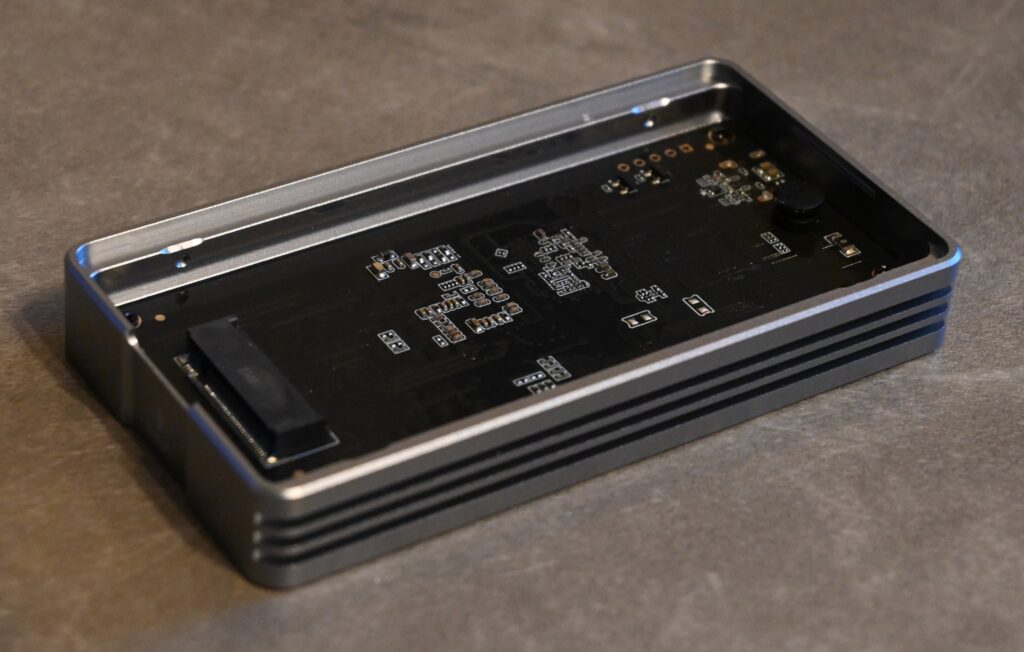
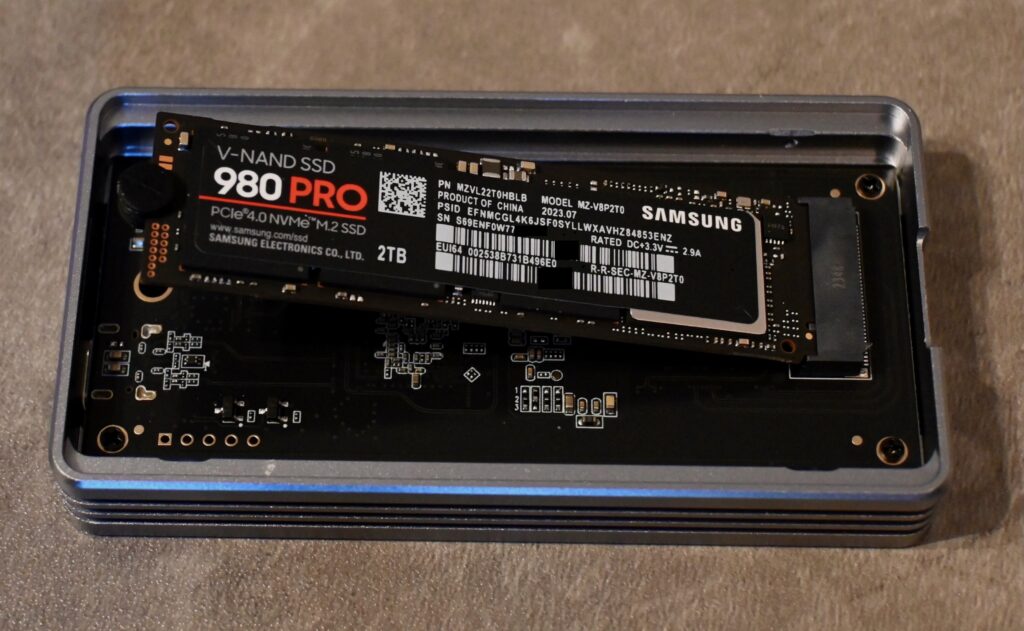
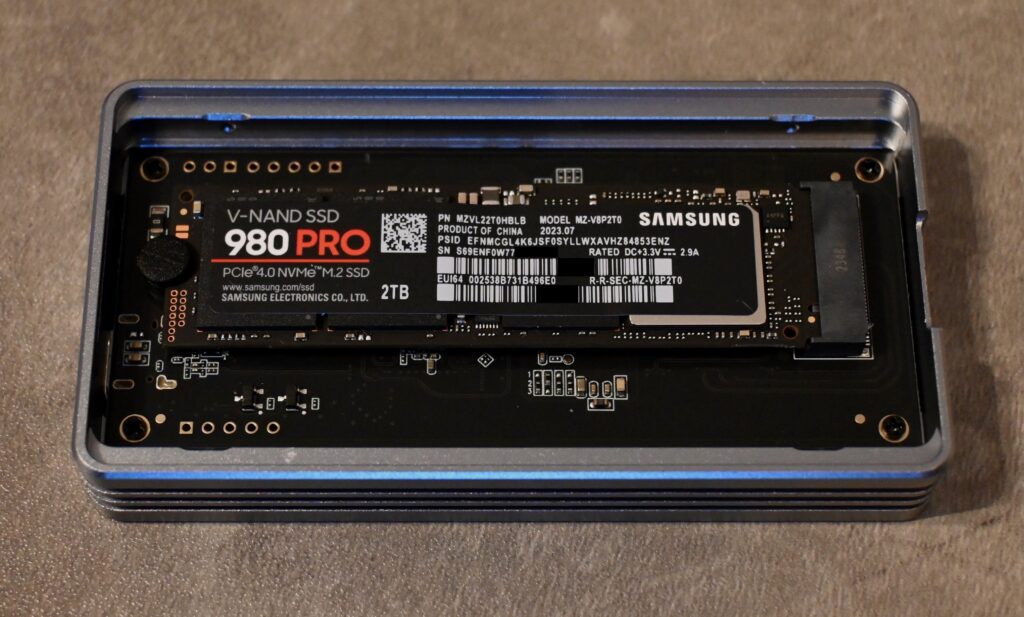
Installation was incredibly simple and tool-free. The case pops open with a bit of force and is secured with bearings within the lid. It feels secure enough to withstand jostling in a backpack.
The NVMe drive slides in easily and is held by a small rubber grommet rather than a screw. While I would prefer a screw for extra security, the grommet does the job. However, note that the circuit board inside the case only accommodates 2280-size NVMes. Other sizes cannot be secured.
A thermal pad is included, but it seemed too thin to make proper contact with the aluminium lid. I doubled it up using a spare pad for better heat dissipation.
Performance
Now for the exciting part! I tested the drive using the following hardware:
- Lenovo Legion 7i Gen9 running Windows 11 Pro (Thunderbolt 4)
- Apple MacBook Air M3 running macOS Sequoia 15.3.2 (Thunderbolt 4)
- Apple MacBook Pro M4 Max running macOS Sequoia 15.3.2 (Thunderbolt 5)
I also tested different filesystems where applicable:
- FAT32
- exFAT
- APFS
- NTFS
On macOS, I used the Blackmagic Speed Test, while on Windows, I used CrystalDiskMark.
The Results!
macOS
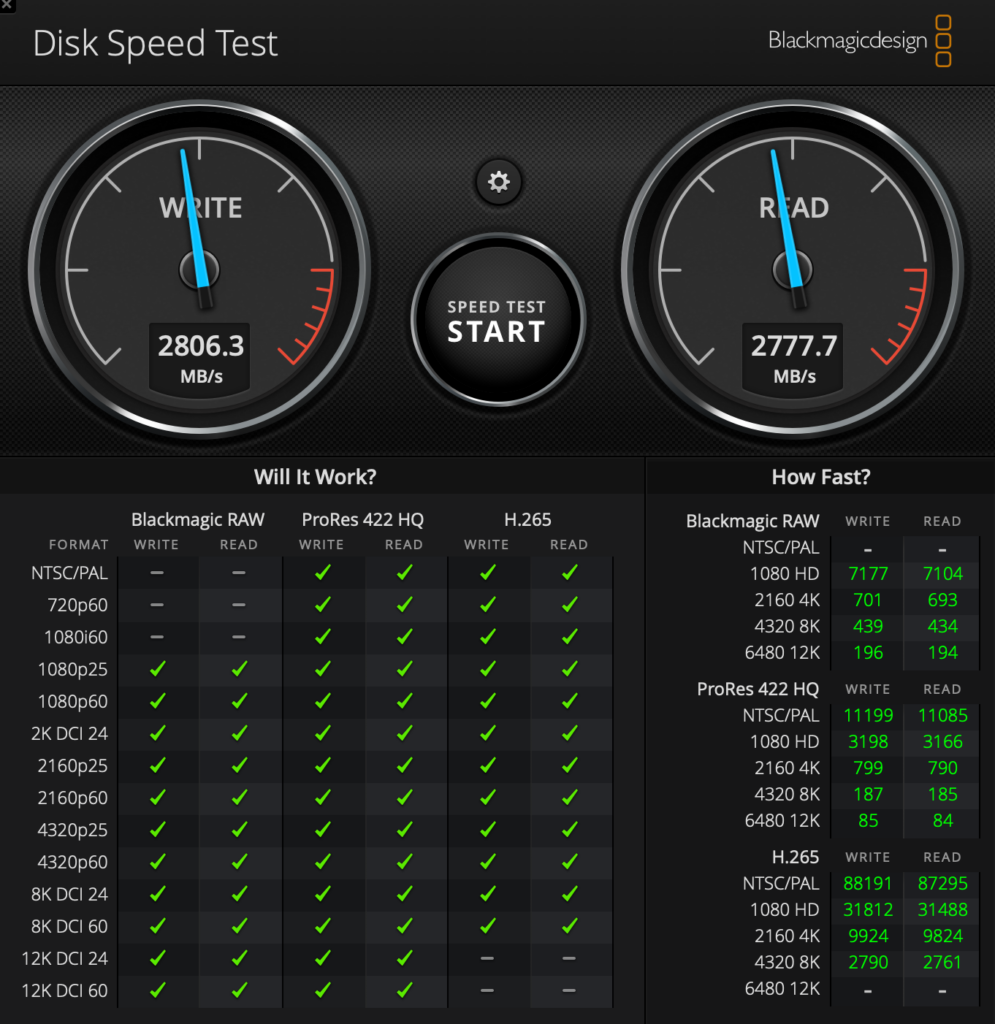
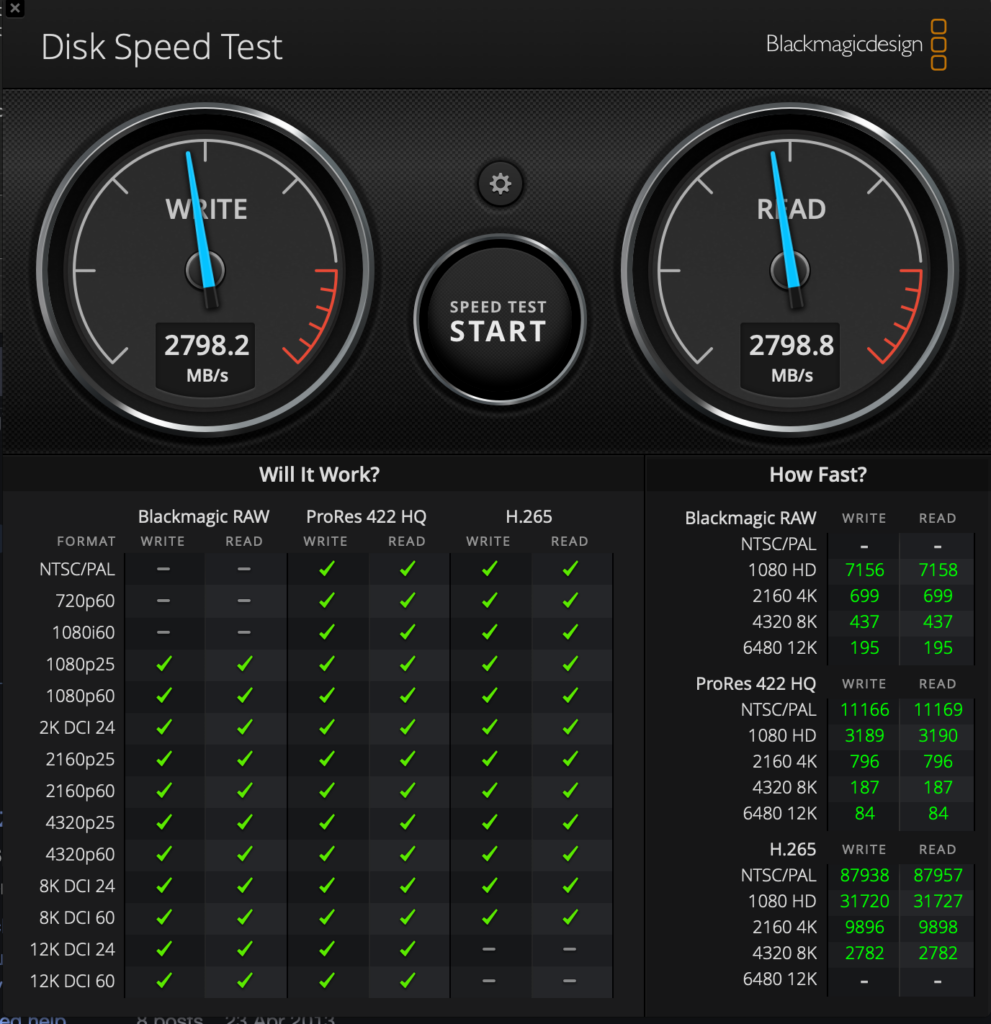
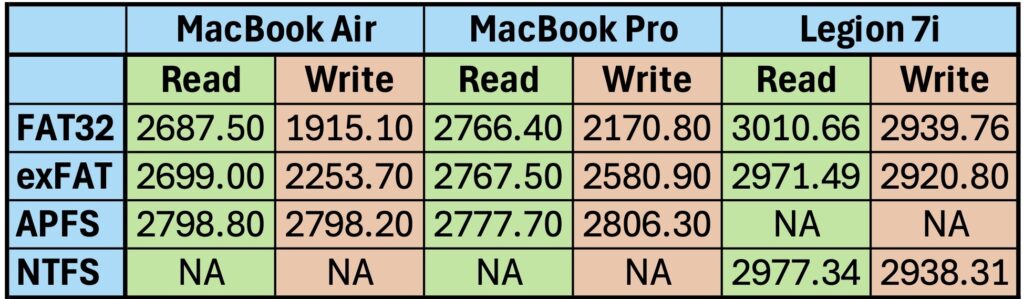
On both MacBooks, the results were impressive, with speeds around 2000-3000MB/s. Unsurprisingly, APFS was the fastest on macOS, but the difference was minor. The MacBook Pro M4 Max was marginally faster than the Air, likely due to Thunderbolt 5 support, though the difference could fall within the margin of error.
Windows 11
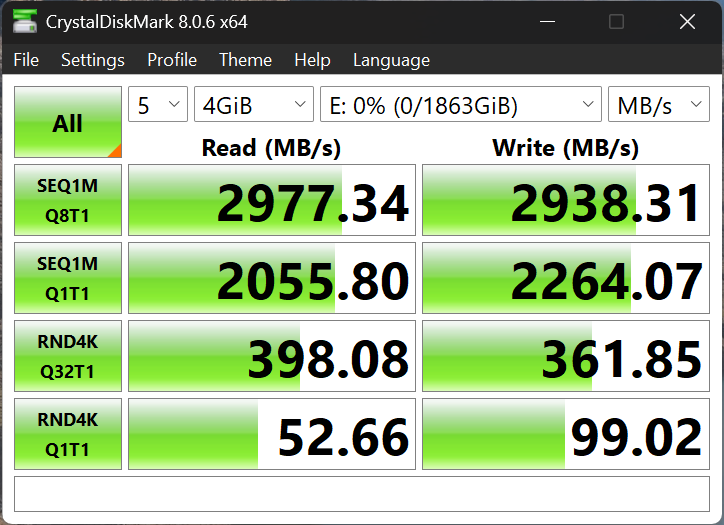
Here’s where things got interesting. My initial tests on NTFS showed unexpectedly low write speeds. Read speeds were comparable to the MacBooks, but writes were much slower. Check out the CrystalDiskMark result from my first run:
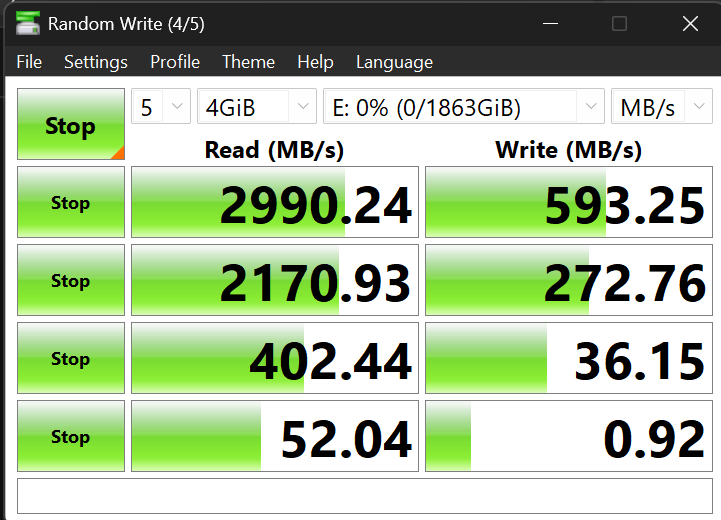
593 MB/s! What was going on?
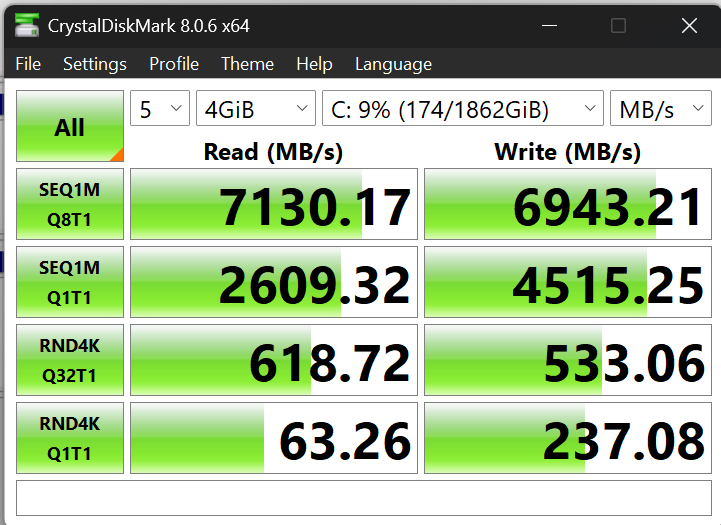
To rule out a hardware issue, I tested the internal Samsung 990 PRO in my Lenovo Legion 7i, achieving the expected speeds (~7000MB/s read and write).
The Issue: Write Caching
The culprit? Windows 11 had write caching disabled for the external drive. While this is a reasonable precaution to prevent data loss if a drive is disconnected unexpectedly, or experiences a power loss, it significantly impacts write speed.
Write caching allows data to be stored in the system’s RAM temporarily, dramatically increasing write performance. However, it also introduces a risk of data loss if the drive is improperly disconnected. Interestingly, macOS enables write caching by default, while Windows does not.
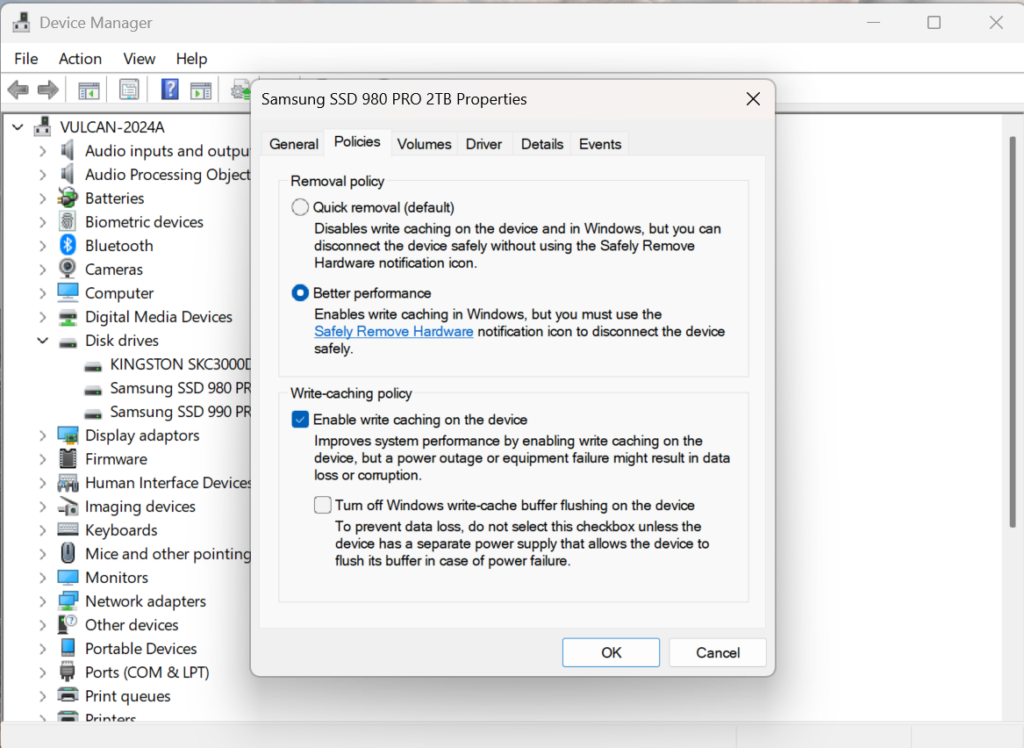
To enable write caching in Windows 11:
- Open Device Manager
- Navigate to Disk Drives
- Right-click your external SSD (e.g., Samsung 980 PRO)
- Select Properties > Policies
- Choose Better Performance and enable write caching
After enabling write caching, I achieved speeds of around 3000MB/s on the Legion running Windows 11 for both read and write.
Finally here we see the comparison between the combinations of OS and FileSystem type on the two MacBooks and the Lenovo Legion.
Thermal Management
During a 10-minute stress test, the drive enclosure became warm but never uncomfortably hot. I found Samsung’s 980 PRO runs cooler than other drives such as the 990 PRO, so your results may vary depending on the drive you choose.
Conclusion
A mid-range enclosure with a fast NVMe drive offers excellent read and write speeds, often close to internal NVMe SSDs on some Windows laptops or a MacBook Air. While it won’t match the performance of a MacBook Pro Max’s internal storage, it’s a compelling option for expanding storage.
Windows or macOS? The results were fairly consistent across both platforms. Differences in speed could be attributed to the testing tools and margin of error. Just remember to enable write caching on Windows to unlock the full potential.
As always, back up your data regularly. External drives are a single point of failure, and using write caching increases the risk of data loss if not handled properly.
Over to You!
Have you found a better drive enclosure and NVMe combination? I’d love to hear your results in the comments!